
Silk Mobile
Table of Contents (Homepage)
- Overview
- Setting Up
- Getting Started
- How To
- Connecting Devices And Emulators
- Preparing Applications For Testing
- Managing Applications
- Recording Tests
- Working With Test Commands
- Adding Commands To Your Scripts
- Object Commands
- Click
- ClickCoordinate
- ClickIn
- ClickOffset
- Drag
- ElementGetProperty
- ElementGetTableRowsCount
- ElementListPick
- ElementListSelect
- ElementListVisible
- ElementScrollToTableRow
- ElementSendText
- ElementSetProperty
- ElementSwipe
- ElementSwipeWhileNotFound
- GetAllValues
- GetElementCount
- GetElementCountIn
- GetTextIn
- IsElementBlank
- IsElementFound
- IsFoundIn
- LongClick
- RunNativeAPICall
- SendWhileNotFound
- VerifyElementFound
- VerifyElementNotFound
- VerifyIn
- WaitForElement
- WaitForElementToVanish
- GetCoordinateColor
- DragDrop
- Application Commands
- Device Commands
- Web (Hybrid) Specific Commands
- Utilities Commands
- Monitoring Commands
- Configuration Commands
- ExtractLanguageFiles
- SetDefaultClickDownTime
- SetDefaultTimeOut
- SetDefaultWebView
- SetDragStartDelay
- SetInKeyDelay
- SetKeyToKeyDelay
- SetLanguage
- SetLanguagePropertiesFile
- SetShowImageInReport
- SetShowPassImageInReport
- SetShowReport
- SetSpeed
- SetThrowExceptionOnFail
- SetWebAutoScroll
- StartStepsGroup
- StopStepsGroup
- TextFilter
- Miscellaneous Commands
- Controlling Element Identification Rules
- Editing Test Objects
- Executing Test Scripts
- Report Of Executed Test
- Working From Code Environment
- Continuous Integration
- Layout Verification Tests
- Use Device Vitals Monitors
- Troubleshooting
- Terminology
Troubleshooting iOS Connectivity
Problem description: My device is connected but Silk Mobile does not identify it.
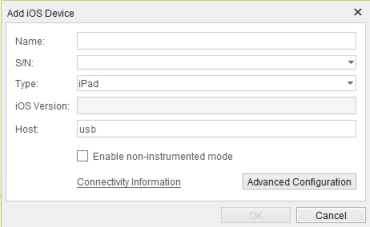
Mandatory : iTunes has to identify the device.
Troubleshooting steps:
Step 1: Make sure that iTunes is installed on the PC.
Note: If not, install latest version of iTunes .
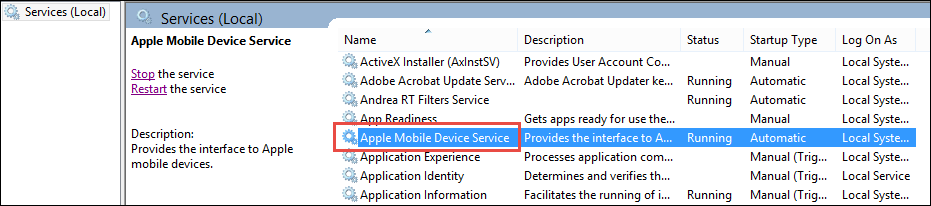
Step 2: Open services, and verify that the Apple Mobile Device service is running.
Step 3: Try to switch usb cable or usb ports.
Step 4: On the device, make sure it trust the machine.
Problem description: Silk Mobile identifies the device but iOS reflection is not opening.
Mandatory: Device can be open on instrumented mode.
Step 1: Follow option B steps to open the device on instrumented mode.
Problem description: Cannot click the home button on the reflection. Device get disconnected all the time
Mandatory: Need to enable non-instrumented mode.
Step 1: Follow steps to open the device on non-instrumented mode.
Step 2: Make sure that iOS sign configuration is enabled for the device.
Device appears on Device column for one of the profiles on the list.
Problem description: Cannot open the device on non-instrumented mode on iOS 8 devices
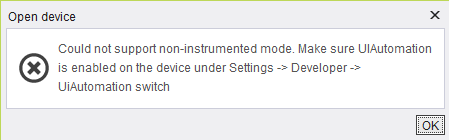
Mandatory: UIAutomation switch has to be on
Step 1: Follow instructions on the message window to enable the switch. Then try again to open reflection.
Problem description: Cannot open the device on non-instrumented mode.
Mandatory: Paltiel needs to run on the device
Paltiel is an application installed automatically on the device (no need to do it manually) when opening device reflection on Silk Mobile on non-instrumented mode.
Sometimes there will be need to repeat the process with fresh copy of Paltiel
Step 1: Delete Paltiel from the device.
Step 2: Go to "Help" and click the "Open log folder" option.
Step 3: Open "apk" option. There will be several "Prof" folders for each profile configured (zero based, (Eg. Prof0, Prof1, Prof2 ... ).

Step 4: Open the folder of profile device belongs to (use the iOS sign configuration utility).
Step 5: All applications instrumented by the profile will be found there including "Paltiel" file.

Step 6: Delete it from the folder.
Open reflection of the device again.